


ID Apple / Akaun iCloud – Panduan Pendaftaran Lengkap & Soal Jawab


Apple ID ialah akaun teras yang diperlukan untuk menggunakan iPhone atau iPad dengan betul.
Ia memberi anda akses kepada sandaran iCloud, App Store, Find My iPhone, iMessage, FaceTime dan banyak lagi.
Sama ada anda menggunakan iPhone baharu atau terpakai , panduan ini menerangkan cara mendaftarkan Apple ID dengan selamat , serta menjawab soalan lazim yang ditanya oleh ramai pengguna.
Apakah itu ID Apple?
Apple ID ialah akaun peribadi yang disediakan oleh Apple yang menghubungkan anda ke semua perkhidmatan Apple.
⚠️ Satu Apple ID sepatutnya dimiliki oleh seorang pengguna sahaja .
Jangan sekali-kali berkongsi atau menggunakan semula Apple ID orang lain.
Cara Mendaftar Akaun Apple ID / iCloud
Kaedah 1: Daftar Terus pada iPhone (Disyorkan)
Ini adalah cara yang paling mudah dan selamat.
Langkah 1: Buka Tetapan
Pergi ke Tetapan → ketik Daftar masuk ke iPhone anda .
Langkah 2: Cipta ID Apple Baharu
Ketik Tiada Apple ID atau terlupa?
Pilih Cipta ID Apple .
Langkah 3: Masukkan Maklumat Asas
Isi:
- Nama penuh
- Tarikh lahir
Langkah 4: Pilih Alamat E-mel (Penting)
Anda boleh:
- Gunakan emel anda sendiri, atau
- Cipta emel @icloud.com percuma
🔔 Cadangan kukuh:
Gunakan alamat e-mel Gmail, Outlook atau Yahoo .
Mengapa ini penting:
- Lebih mudah untuk memulihkan ID Apple jika anda terlupa kata laluan anda
- Lebih selamat dan boleh dipercayai
- Proses pengesahan yang lebih pantas
Elakkan e-mel sementara, khusus untuk kerja atau jarang digunakan.
Langkah 5: Cipta Kata Laluan Apple ID (Sangat Penting)
Kata laluan Apple ID anda mesti memenuhi peraturan keselamatan Apple :
✅ Wajib sertakan:
- Sekurang-kurangnya 1 huruf besar (A–Z)
- Sekurang-kurangnya 1 huruf kecil (a–z)
- Sekurang-kurangnya 1 digit (0–9)
❌ Tidak boleh mengandungi:
- Nama anda
- Alamat e-mel anda
- Nombor telefon anda
- Perkataan mudah atau biasa
⚠️ Sila ingat kata laluan Apple ID anda.
Jika dilupakan, ia boleh menyebabkan masalah akses yang serius kemudian hari.
Langkah 6: Sahkan Nombor Telefon
Apple akan menghantar kod pengesahan melalui SMS .
Masukkan kod untuk meneruskan.
Langkah 7: Lengkapkan Persediaan Keselamatan
Dayakan:
- Pengesahan dua faktor
- ID Wajah / ID Sentuh
Langkah 8: Sahkan E-mel dalam Tetapan iCloud
Selepas penciptaan ID Apple:
- Pergi ke Tetapan
- Ketik nama Apple ID anda (bahagian atas halaman)
- Ketik iCloud
- Semak pengesahan e-mel
- Buka peti masuk e-mel anda dan sahkan e-mel Apple ID anda
⚠️ Tanpa pengesahan e-mel:
- App Store mungkin tidak berfungsi dengan betul
- Pemulihan akaun mungkin gagal kemudian
Langkah 9: Buka App Store & Muat Turun Mana-mana Aplikasi
Seterusnya:
- Buka Gedung Aplikasi
- Cuba muat turun mana-mana aplikasi percuma
- Anda akan diminta untuk Menyemak Apple ID
Ketik Semak untuk meneruskan.
Langkah 10: Lengkapkan Maklumat Pembayaran & Alamat
Semasa Semakan ID Apple, anda perlu mengisi:
- Kaedah Pembayaran
Anda boleh memilih Tiada (disyorkan jika anda tidak mahu menambah kad)
- Alamat Pengebilan
Negara
Alamat
Nombor telefon
📌 Walaupun anda memilih Pembayaran: Tiada , alamat tetap diperlukan .
Status Akhir: Apple ID Selesai Sepenuhnya ✅
Sebaik sahaja anda:
- Sahkan e-mel anda
- Semak Apple ID di App Store
- Maklumat pembayaran & alamat yang lengkap
ID Apple anda akan menjadi:
- ✅ Diaktifkan sepenuhnya
- ✅ Boleh memuat turun aplikasi
- ✅ Bersedia untuk sandaran iCloud
- ✅ Sedia untuk kegunaan jangka panjang
Peringatan Penting
Jika langkah ini dilangkau:
- Muat turun aplikasi mungkin gagal
- ID Apple mungkin menunjukkan ralat
- Pemulihan kata laluan pada masa hadapan mungkin sukar
👉 Sentiasa lengkapkan pengesahan e-mel + semakan App Store selepas mendaftar Apple ID.
Kaedah 2: Daftar Apple ID Menggunakan Komputer atau Android
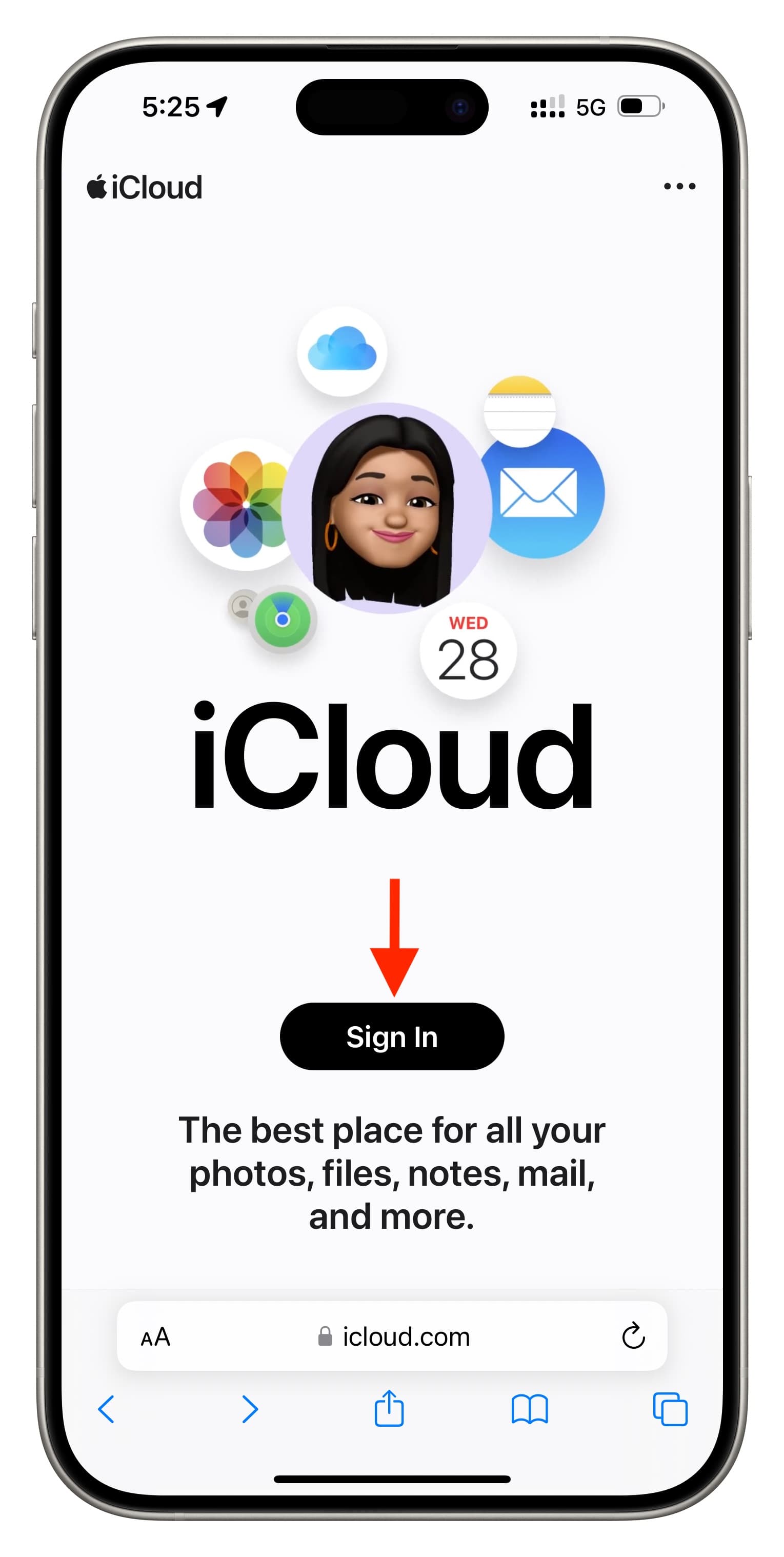


Jika anda belum mempunyai akses kepada iPhone:
- Lawati appleid.apple.com
- Klik Cipta ID Apple Anda
- Masukkan:
- Nama
- Negara / rantau
- Alamat e-mel (Gmail / Outlook / Yahoo disyorkan)
- Kata laluan yang kukuh (ikut peraturan di atas)
- Sahkan e-mel dan nombor telefon
-
Daftar masuk kemudian pada iPhone anda melalui Tetapan
Mengapa ID Apple Penting
Dengan Apple ID, anda boleh:
- ☁️ Sandarkan foto, kenalan, WhatsApp
- 🛒 Muat turun aplikasi dari App Store
- 📍 Gunakan Cari iPhone Saya
- 💬 iMessage & FaceTime
- 🔄 Segerakkan data merentasi peranti Apple
Tanpa Apple ID, banyak ciri iPhone tidak akan berfungsi dengan betul .
ID Apple / Akaun iCloud – Soalan Lazim (Soalan & Jawapan)
S1: Bolehkah satu ID Apple log masuk pada berbilang peranti?
Ya.
Satu Apple ID boleh dilog masuk pada berbilang peranti Apple (iPhone, iPad, Mac).
Ini membolehkan data iCloud disegerakkan merentasi peranti.
⚠️ Tidak digalakkan untuk berkongsi satu Apple ID antara pengguna yang berbeza.
S2: E-mel apakah yang terbaik untuk mendaftarkan Apple ID?
Gmail, Outlook atau Yahoo (Sangat Disyorkan)
E-mel-e-mel ini menjadikannya:
Lebih mudah untuk memulihkan ID Apple
- Lebih selamat jika anda terlupa kata laluan anda
- Lebih dipercayai untuk pengesahan keselamatan
S3: Adakah kata laluan Apple ID benar-benar penting?
Ya — sangat penting.
- Jika anda terlupa kata laluan Apple ID anda:
- Anda mungkin tidak dapat memuat turun aplikasi
- Peranti anda mungkin dikunci
- Walaupun telefon telah dipadam atau ditetapkan semula, Apple ID masih diperlukan
Ini disebabkan oleh Activation Lock , sistem keselamatan yang direka untuk melindungi pengguna.
S4: Apa yang berlaku jika saya terlupa Apple ID dan kata laluan saya?
- Anda mesti mendapatkannya semula menggunakan e-mel atau nombor telefon yang didaftarkan
- Tanpa pemulihan, peranti mungkin kekal Berkunci Pengaktifan
- Tiada cara rasmi untuk memintas kunci ini
S5: Bolehkah Apple ID dialih keluar atau dipintas?
Tidak.
Hanya pemilik Apple ID asal sahaja yang boleh mengalih keluarnya.
Sentiasa pastikan Apple ID telah dilog keluar sebelum menjual atau membeli peranti.
Peringatan Penting untuk Semua Pengguna
- Sentiasa cipta Apple ID anda sendiri
- Gunakan e-mel yang boleh dipulihkan (Gmail / Outlook / Yahoo)
- Cipta kata laluan yang kukuh dan ingatlah ia
- Jangan sekali-kali menggunakan Apple ID orang lain
🔐 Apple ID anda adalah kunci kepada iPhone anda.
Kehilangannya mungkin bermakna kehilangan akses kepada peranti anda.

5 comments