

How to Check a Pre-Owned iPhone
Simple & Advanced Steps to Ensure Your iPhone Is Fully Functional
Buying a pre-owned iPhone can be a smart choice — but only if you know how to check whether the device is truly problem-free.
This guide will walk you through simple and advanced steps to inspect a second-hand iPhone, helping you avoid hidden issues such as hardware damage, main-board failure, or iCloud lock problems.
✅ Simple Check – 11 Key Functions (Recommended for All Users)
These basic checks are suitable for everyday users and can be completed in just a few minutes.
Prefer a guided and interactive check?
Run iPhone Full Check ToolWorks on iPhone Safari · No app required
1. Condition & Button Check


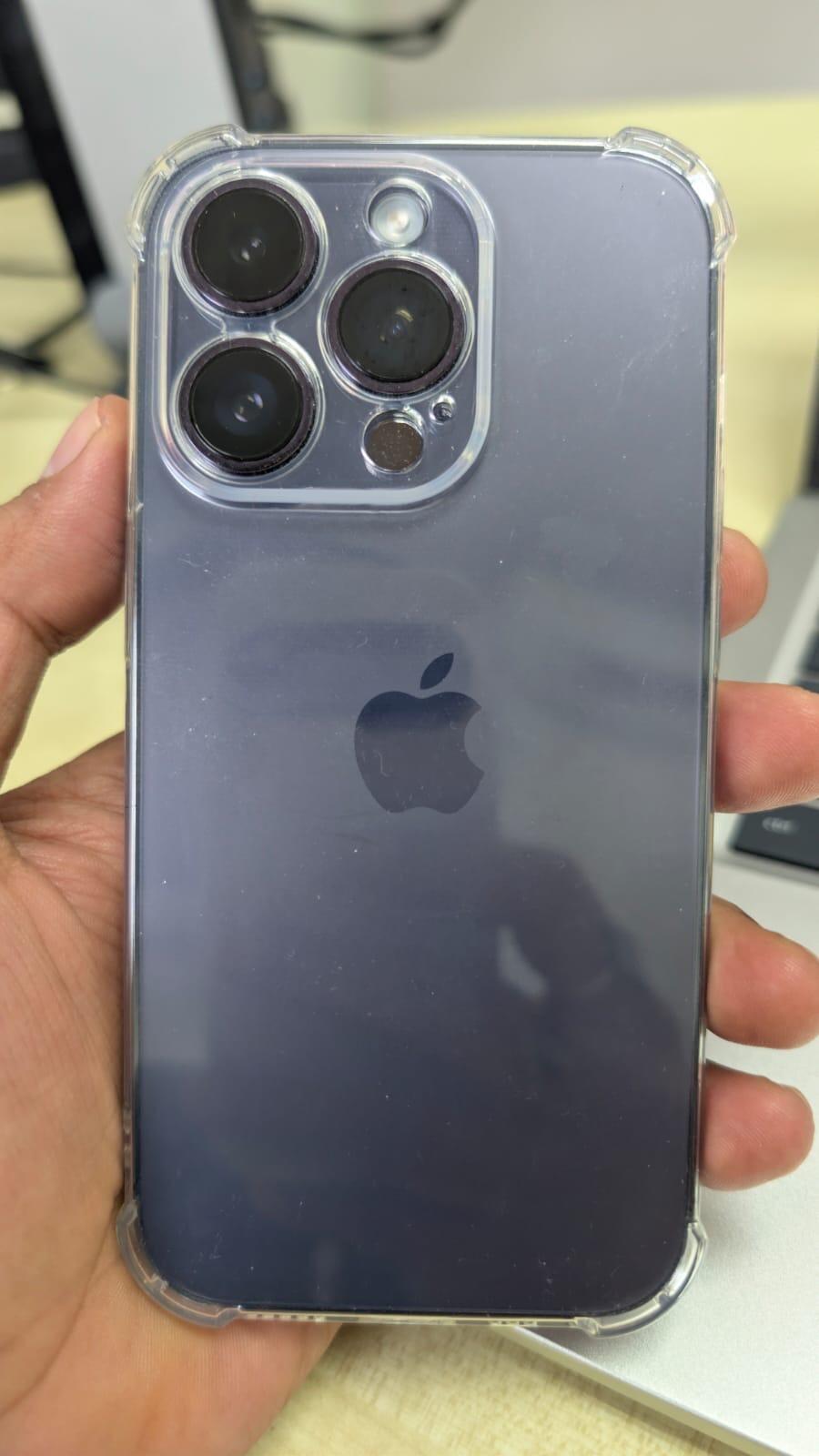
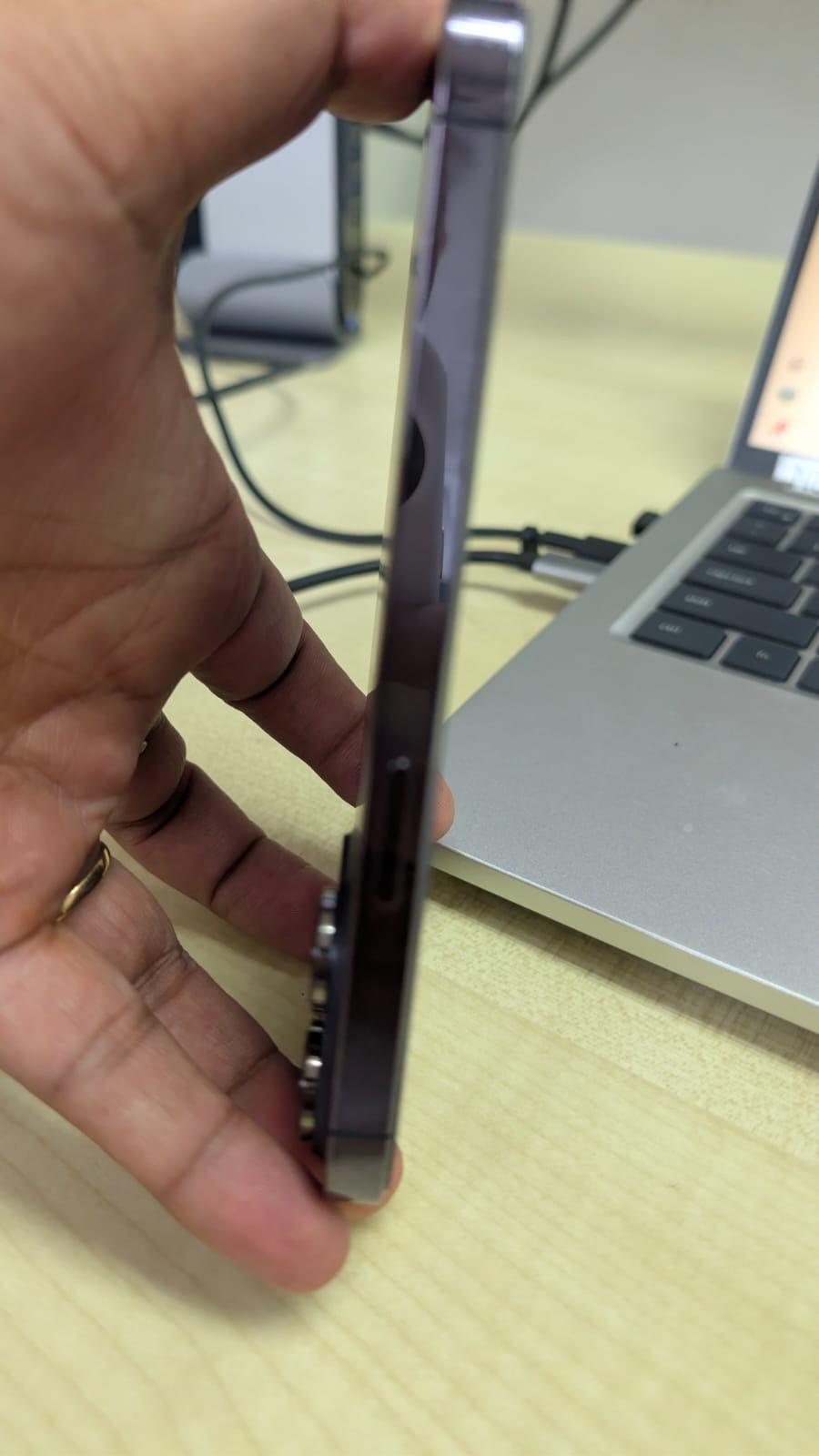
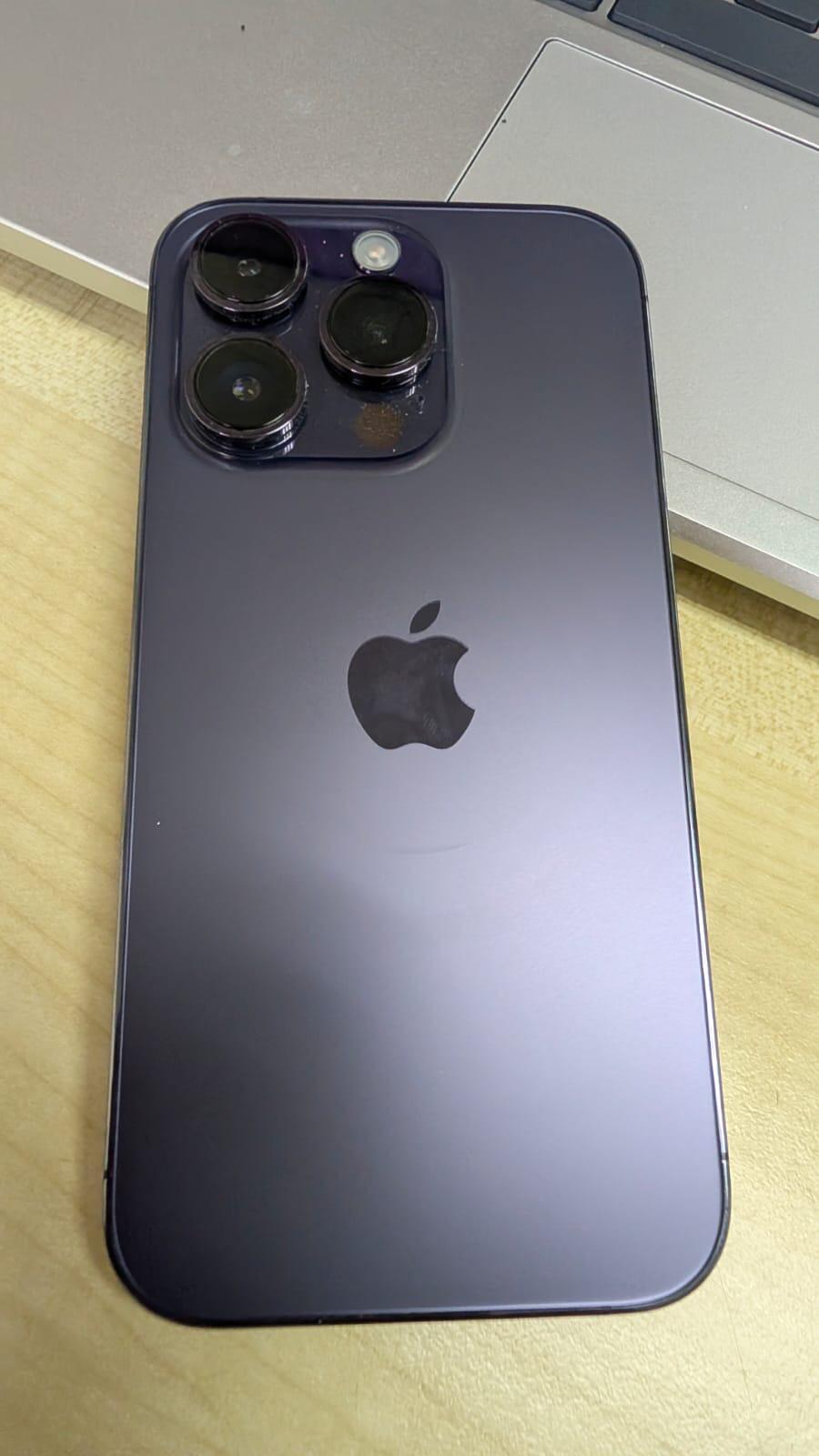
Inspect the physical condition of the phone.
Make sure Power, Volume, and Silent buttons respond properly.
2. Battery Health Check

Go to Settings > Battery > Battery Health & Charging
A healthy battery should generally be above 80%.
3. Touch Screen Test


Test By Note App / Assistive Touch
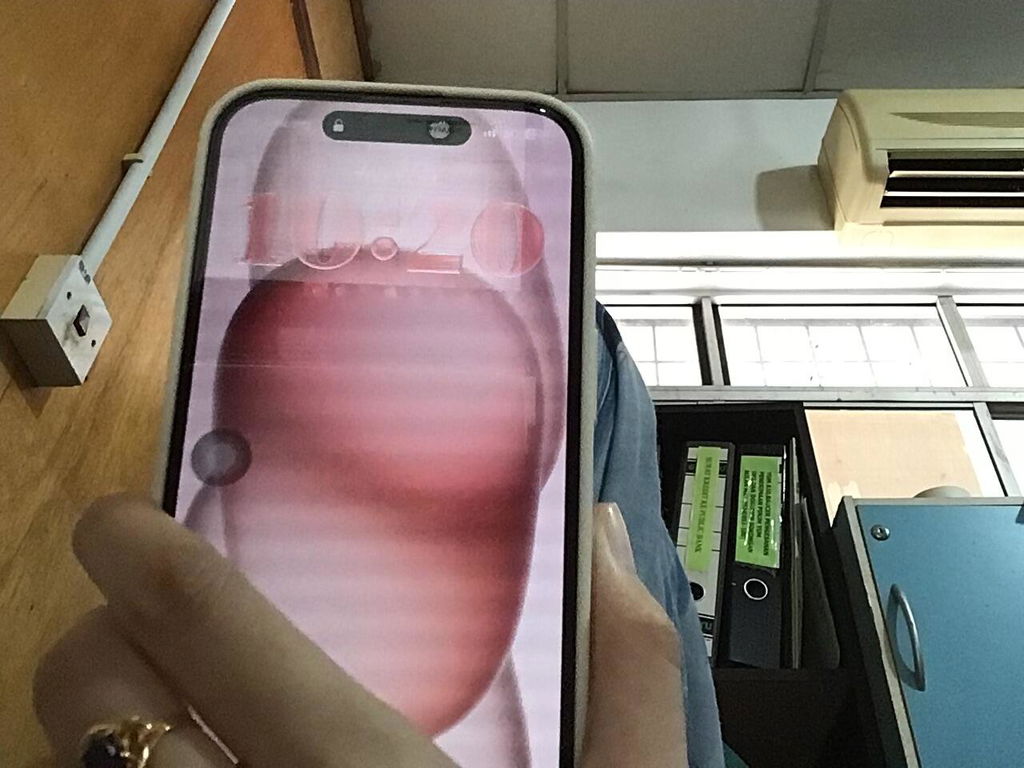
Swipe across the entire screen and make sure every area responds accurately.
4. Camera / Video / Microphone Test


Test By Camera App
- Take photos (front & rear)
- Record a video
- Record a voice memo to ensure the microphone works clearly
5. Speaker / Sound Test

Test By Voice Memos App
Play music or a video to confirm both speakers are loud and clear.
6. Flashlight Test

Test On Control Centre
Turn on the flashlight and check brightness consistency.
7. SIM Service Test


Insert a SIM card and confirm signal, calls, and mobile data work.
8. Charging Port Test

Plug in a cable to ensure stable charging with no loose connection.
9. iCloud / Apple ID Check

Go to Settings
Make sure the phone is signed out of iCloud and not locked to a previous owner.
10. Parts & Service History

Go to Settings > General > About > Parts & Service History
Check whether any parts are listed as Unknown.
Note : If didn't show anything here that's mean maybe will not replace anything before
11. Main-Board Check (Panic Full)


Go to:
Settings > Privacy & Security > Analytics & Improvements > Analytics Data
Search for “Panic Full”
⚠️ What Is “Panic Full”?
If you find Panic Full logs in the Analytics Data, it usually means:
- Main-board issue
- Water damage
- Critical internal hardware failure
These problems may cause the iPhone to:
- Restart automatically
- Shut down unexpectedly
- Become unstable over time
⚠️ Devices with Panic Full records are NOT recommended for long-term use.
Prefer a guided and interactive check?
Run iPhone Full Check ToolWorks on iPhone Safari · No app required
🔍 Advanced Check – 31 Detailed Tests (For Professional or Serious Buyers)
For users who want a full diagnostic, these advanced checks provide deeper assurance.
Display & Sensor Tests
- Brightness Test
- Color Test
- Touch Screen Test
- Multi-Touch / Pinch Test
- Proximity Sensor Test
Motion & Hardware Sensors
- Accelerometer Test
- Shake Test
- Compass Test
- Vibrate Test
Biometric & Camera
- Face ID Test
- Camera Test (Front & Rear)
- Video Recording Test
- Portrait Mode Test
Connectivity
- Wi-Fi Test
- Bluetooth Test
- Hotspot Test
- GPS Test
Audio & Communication
- Speaker Test
- Microphone Test
- Phone Call Test (5G / 4G / LTE)
Buttons & Ports
- Power / Volume / Silent Button Test
- Charging Port Test
System & Account
- App Store Login Test (via App Store)
- Reset Test
- iCloud / Apple ID Check
- Parts & Service History Review
SIM Configuration
- Single SIM
- Dual SIM
- eSIM / Dual eSIM
Main-Board Check (Again)
Repeat the Panic Full inspection to ensure system stability.
📲 Recommended Tool for Advanced Checking
For a more convenient and guided process, you may download “Test & Check for iPhone” from the App Store.
This app helps automate many of the advanced hardware and sensor tests listed above.
✅ Final Tip
A properly checked pre-owned iPhone should:
- Have no Panic Full records
- Be free from iCloud lock
- Show no Unknown parts (or clearly disclosed replacements)
- Pass both basic and advanced functional tests
Taking the time to check these details can save you from costly repairs and long-term frustration.
Prefer a guided and interactive check?
Run iPhone Full Check ToolWorks on iPhone Safari · No app required